Safari (Mac + PC)
Detailed Instructions to completely clear the cache for Safari 2.0.1 and higher
Safari on the PC
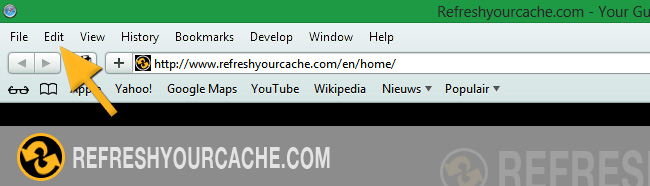
- Step 1
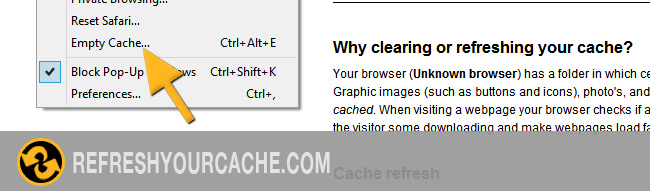
- First click Safari then click Empty Cache

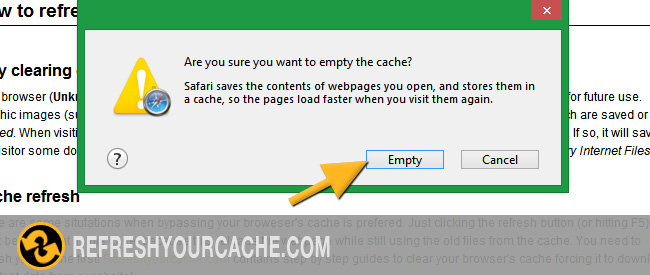
- Step 2
- Click Empty button

- Step 3
- Click the reload current page icon

Force Refresh Safari
Most times a simple force refresh will do the trick, you can accomplish this with the following key combinations:
On the PC: Command + R
On the Mac: Apple + R
Disable the cache permanently
This method only works on old versions of Safari 2 on OS X 10.4 and previous versions, and is not recommended as it may potentially cause system instability
- Quit Safari
- Open a Terminal window by double-clicking 'Terminal' within the 'Utilities' folder, which is within the 'Applications' folder
- Type the following commands, which are case-sensitive, each followed by the Enter key:
rm -rf ~/Library/Caches/Safari
touch ~/Library/Caches/Safari - Quit terminal and relaunch Safari
Safari on the Mac
- Step 1
- First click Safari then click Empty Cache

- Step 2
- Click Empty button

- Step 3
- Click the reload current page icon

Force Refresh Safari
Most times a simple force refresh will do the trick, you can accomplish this with the following key combinations:
On the PC: Command + R
On the Mac: Apple + R
Disable the cache permanently
This method only works on old versions of Safari 2 on OS X 10.4 and previous versions, and is not recommended as it may potentially cause system instability
- Quit Safari
- Open a Terminal window by double-clicking 'Terminal' within the 'Utilities' folder, which is within the 'Applications' folder
- Type the following commands, which are case-sensitive, each followed by the Enter key:
rm -rf ~/Library/Caches/Safari
touch ~/Library/Caches/Safari - Quit terminal and relaunch Safari