
Google Chrome 27
Detailed instructions to completely clear the cache for Chrome 27. Do you use an earlier version of Chrome? Check the Chrome page.



Chrome 27 op de pc
- Step 1
- Click on the three dashes in the top right corner.

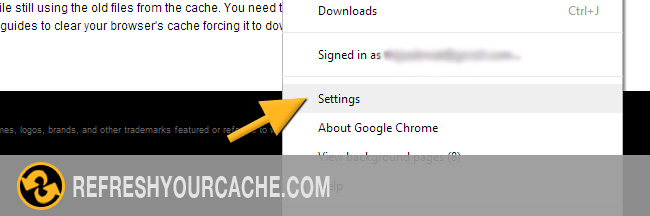
- Step 2
- Click on settings in the menu.
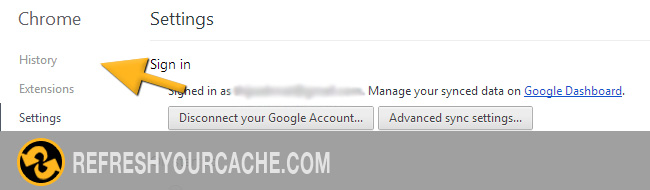
- Step 3
- Click on History in the menu on the left.
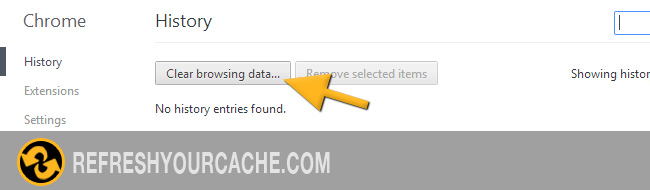
- Step 4
-
Click on Clear browsing data...
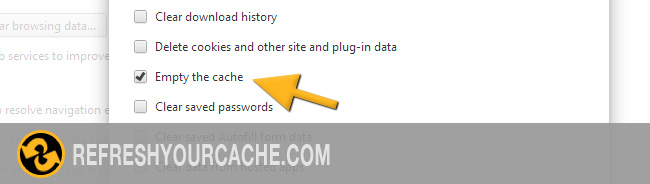
- Step 5
-
Select Empty the cache from the list.
- Step 6
-
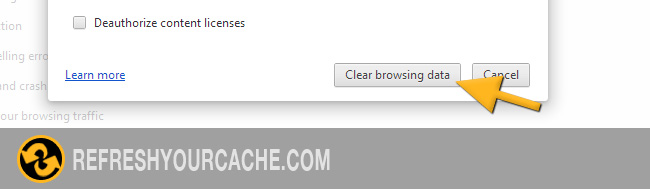
Click on Clear browsing data on the bottom. Your browser cache is now empty.
Force Refresh Chrome
Usally a "force refresh" is enough. You can achieve this by pressing the following key combination:
Shift + Ctrl + F5
Check other versions of Chrome
A step by step guide for clearing the cache for chrome
Click to play the video and clear the cache in your Chrome browser